Billboards
About
In graphics and game contexts, a billboard is a polygon (almost always a 4-sided quad) that automatically rotates to always face the camera.
Instead of modeling a fully 3D object, a flat surface can be rendered with a texture and oriented so that the viewer never sees its thin edge.
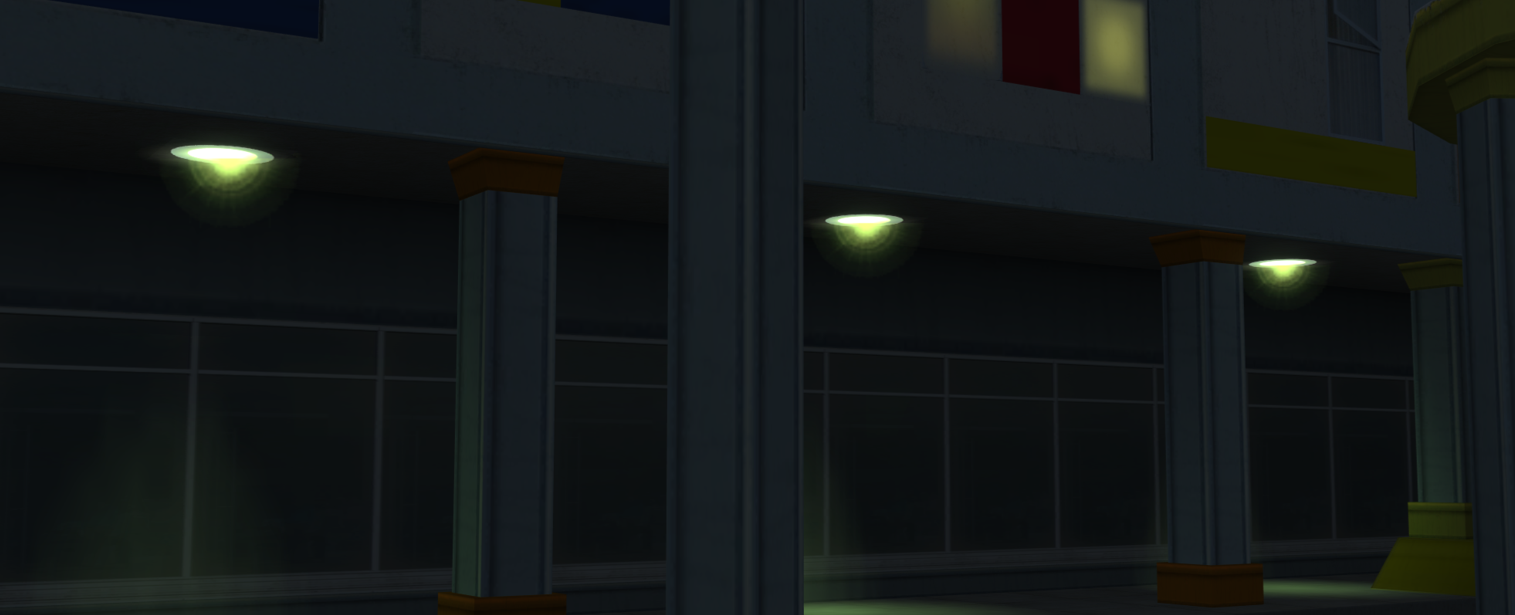
Billboards can be useful for light flares, poles, visual effects, and more.
In the Neversoft engine, a billboard can be one of two types:
Screen-facing billboards face the screen on all axes, appearing "glued" to the screen plane.
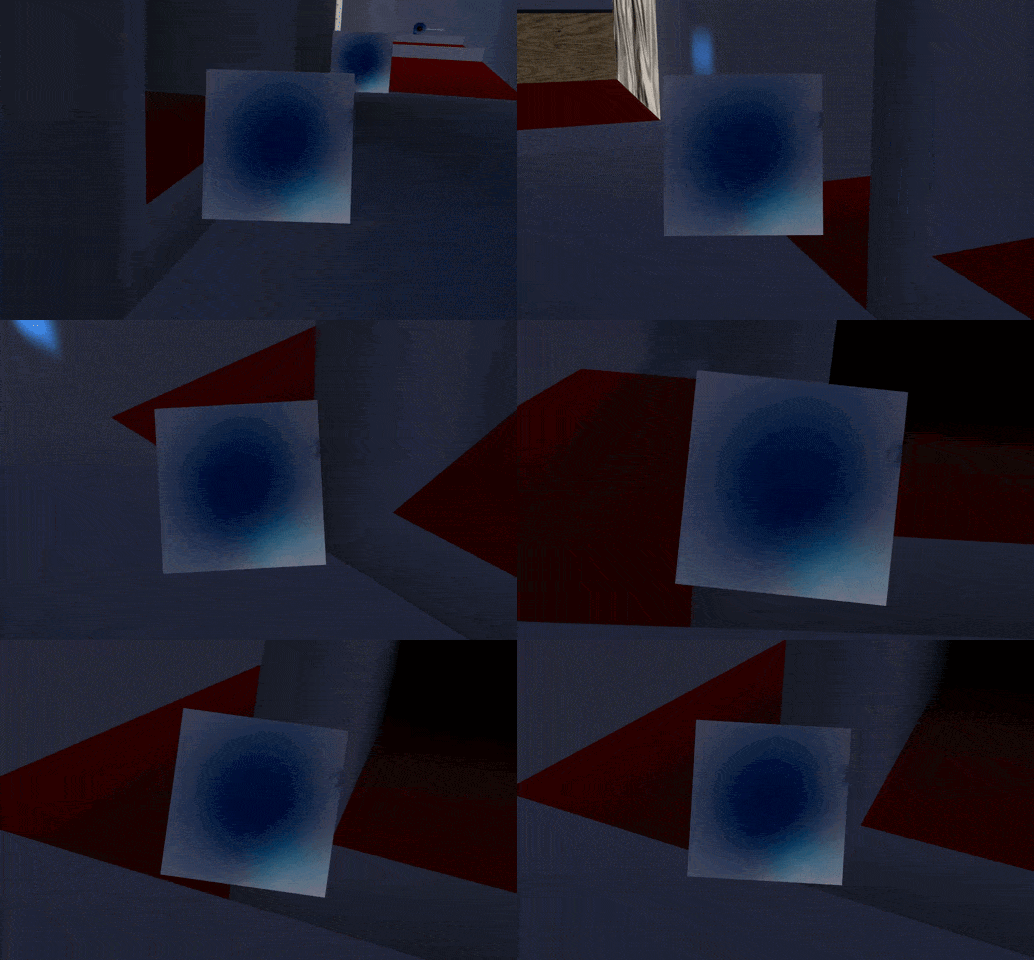
This tends to be the most commonly used billboard type.
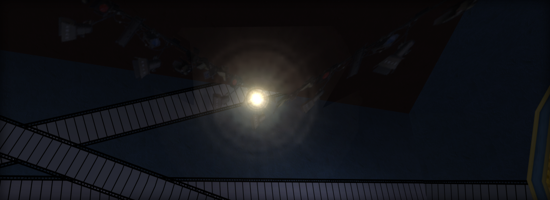
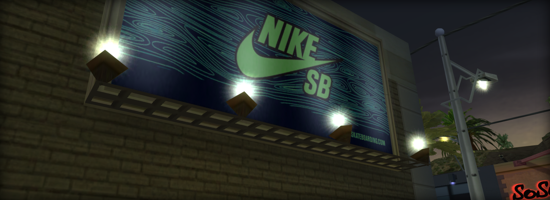
Axis-Aligned billboards rotate only around a fixed axis. Useful for things like trees which stay upright.
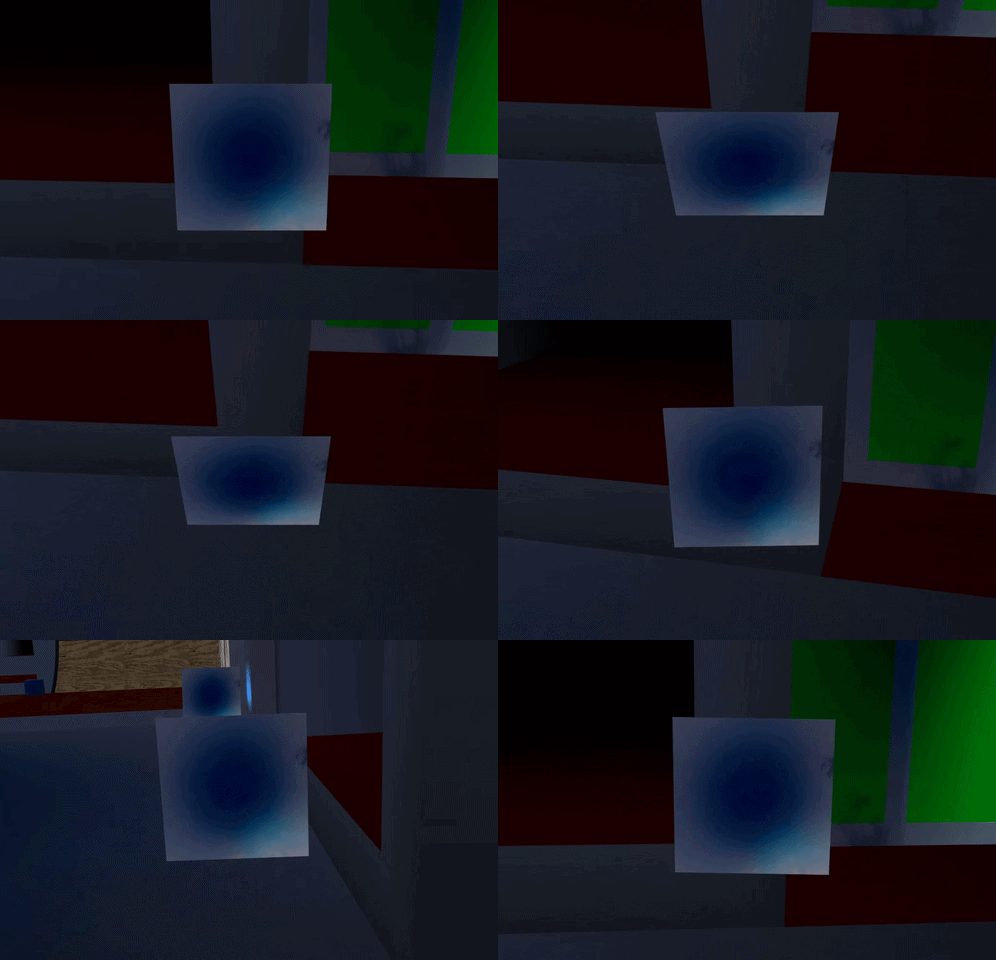
This billboard type is less common, used in more specific scenarios.

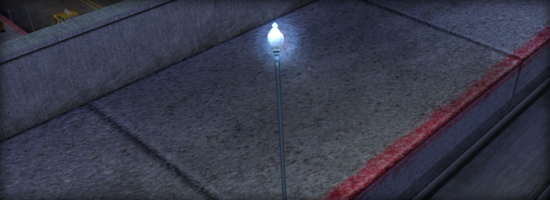
Instead of modeling a fully 3D object, a flat surface can be rendered with a texture and oriented so that the viewer never sees its thin edge.
Billboards can be useful for light flares, poles, visual effects, and more.
In the Neversoft engine, a billboard can be one of two types:
Screen
Screen-facing billboards face the screen on all axes, appearing "glued" to the screen plane.
Always faces the camera by matching its orientation (rotation), not just its position
Appears “flat against the screen” regardless of where it exists in world space
Does not preserve any world-up direction (it tilts as the camera tilts)
Common for particles, lens flares, and 2D sprites that should never look skewed
May look unnatural for grounded objects (trees, etc.) because they lean with the camera
This tends to be the most commonly used billboard type.
Axis-Aligned
Axis-Aligned billboards rotate only around a fixed axis. Useful for things like trees which stay upright.
Rotates to face the camera only around a fixed axis, usually the world's up axis
Preserves vertical orientation by staying upright, no matter how the camera tilts
More realistic for objects anchored to the ground (trees, characters in crowds, signposts)
Can exhibit "edge-on" artifacts if the camera moves above/below extreme angles
Good compromise between full 3D geometry and simple screen-facing quads
This billboard type is less common, used in more specific scenarios.
Mesh Creation
To have a mesh function as a billboard, it must be a single 4-sided quad. We can create one if desired.

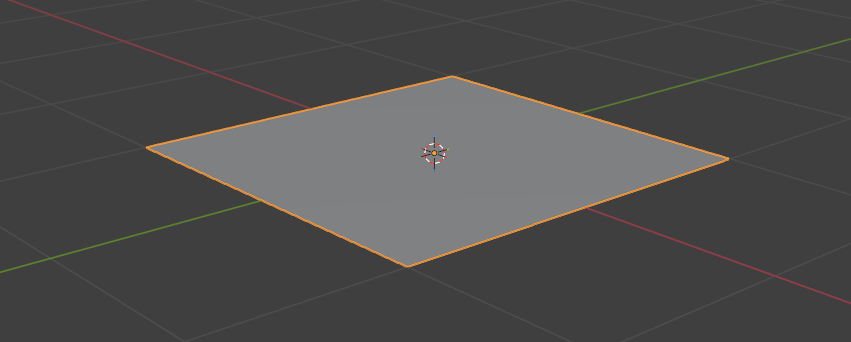
To ensure that the plane properly faces the camera, its front needs to be facing the
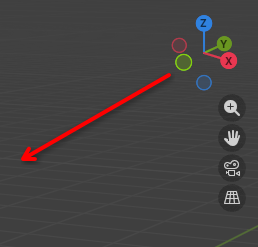
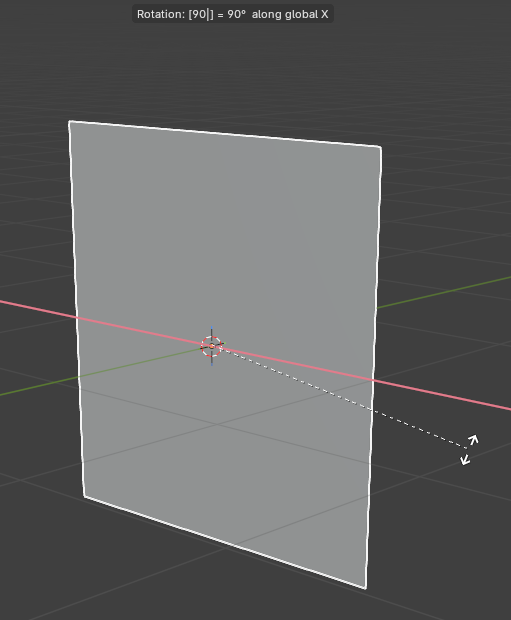
We want to apply the transformation that we have made to the vertices and "bake" it to the mesh.
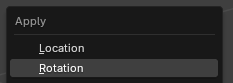
The object's quad is now naturally facing the
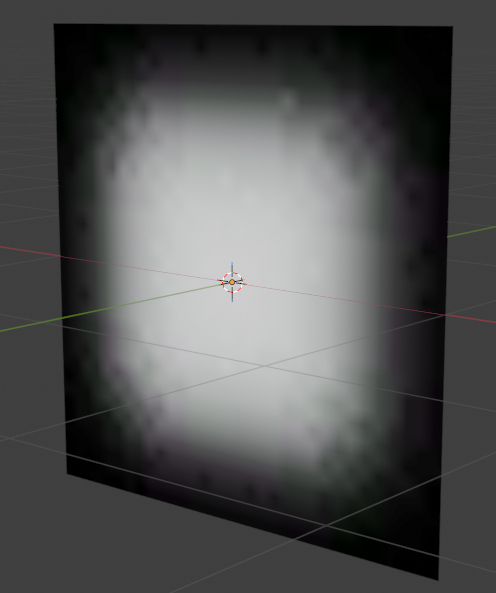
Remember to apply a material to the mesh. See the Materials page for details.
Add a Plane by selecting Add > Mesh > Plane
To ensure that the plane properly faces the camera, its front needs to be facing the
-Y axis. We can judge direction based on the gizmo in the top-right of the viewport.Press the
R key to begin rotating the object.Press the
X key to rotate on the X axis.Type
90 to rotate the object 90 degrees.Press the
Enter key to apply the rotation.We want to apply the transformation that we have made to the vertices and "bake" it to the mesh.
Press
Ctrl + A to open the Apply menu.Select Rotation to apply our transformation to the object.
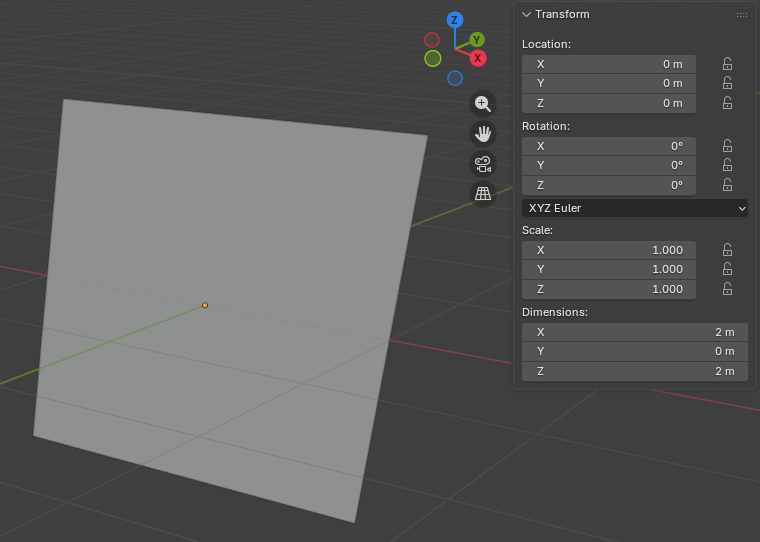
The object's quad is now naturally facing the
-Y axis with no transformations applied.Remember to apply a material to the mesh. See the Materials page for details.
Mesh Origin
To function properly, the origin of the mesh must be set to its center.

We can see by the orange dot that the object's origin (or "pivot point") is its center.
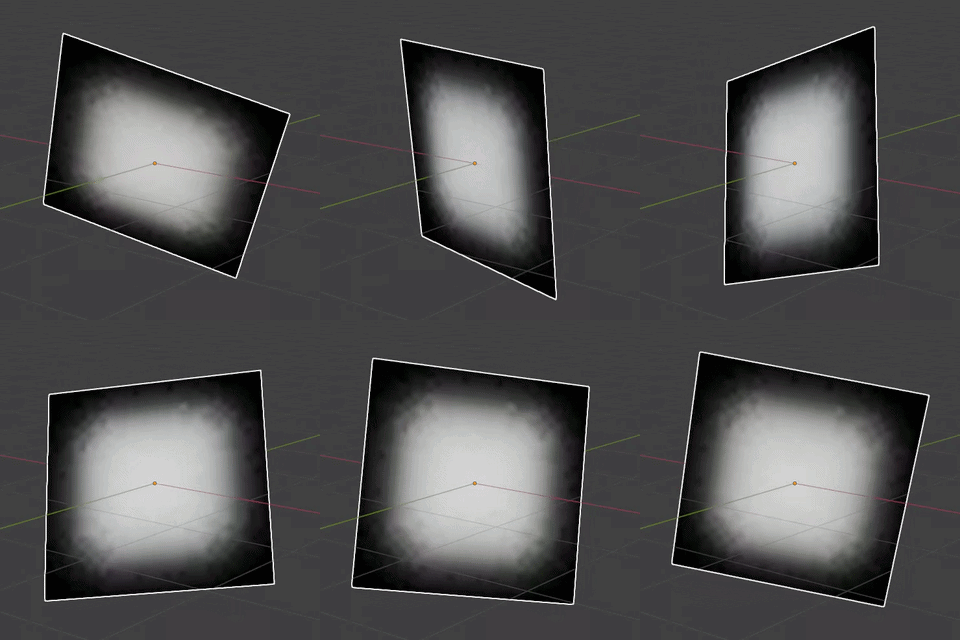
Select Object > Set Origin > Origin to Geometry
We can see by the orange dot that the object's origin (or "pivot point") is its center.
Parameters
Ticking the Billboard box in the Object Flags box exposes additional NXTools properties.
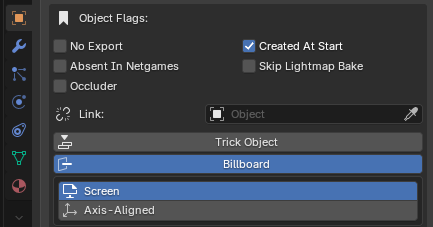
The billboard's type can be set to either Screen or Axis-Aligned. See the above sections for details.
Selecting Axis-Aligned exposes the world axis that the billboard will rotate around.

The default axis causes the billboard to behave like an anchored ground object. (Trees, poles, etc.)
The billboard's type can be set to either Screen or Axis-Aligned. See the above sections for details.
Selecting Axis-Aligned exposes the world axis that the billboard will rotate around.
The default axis causes the billboard to behave like an anchored ground object. (Trees, poles, etc.)